
 English
 Bahasa Indonesia
 Čeština
 Deutsch
 Eesti
Eesti Español
 Filipino
 Français
 Hrvatski
 Íslenska
 Italiano
 Magyar
 Nederlands
 Norsk
Norsk Polski
 Português
 Română
 Suomi
Suomi Tiếng Việt
 Türkçe
 Български
 Монгол
 Русский
 Српски
 עברית
עברית العربية
 हिन्दी
 ไทย
ไทย ភាសារខ្មែរ
 한국어
한국어 中文
中文 日本語
日本語How to use the Image Cropper
Select an image, then drag the handles to define the crop area. The preview updates in real time. Click Download Cropped to save the result at full resolution.
Drop files here or browse
Up to 1 file · Max 100MB each
Accepted: Image files
Free Image Cropper Online - Crop & Frame Photos in Browser
Cropping an image
This tool cuts out a region of an image and discards everything outside the selection.
Unlike resizing, the resolution of the selected area is preserved — nothing is scaled, only trimmed away.
How to use it
Upload the image, drag the selection frame over the region you want to keep, and confirm the crop.
For a fixed aspect ratio — square for a profile picture, for instance — set that ratio before dragging the frame.
What to watch for
Leave a little room at the edges if the image will later appear inside a circular or cropped frame, since part of the border disappears there.
A crop cannot be undone once you overwrite the original, so save the result as a new file.
Frequently asked questions
Is my original image modified?
No. A new file is produced and the original stays as it is until you choose to replace it yourself.
Does cropping reduce image quality?
The selected region keeps its resolution. A very small selection does, however, produce a very small image.
Can I process several files one after another?
Yes. Repeat the process for each file; every run produces its own result to download separately.
Free Image Cropper Online - Crop Photos to Any Ratio | DownloadVideo.vn
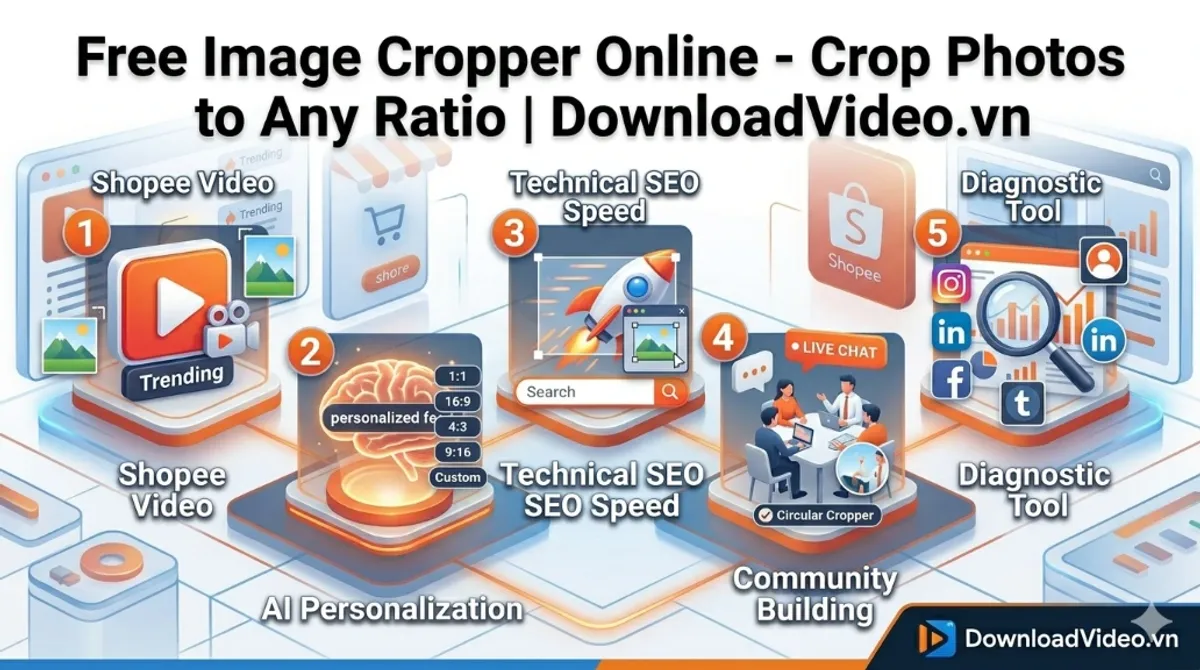
Why Use Our Online Image Cropper?
Our Online Image Cropper is designed for speed and flexibility. Whether you are an influencer needing a perfect Instagram square or a developer preparing assets for a website, our tool provides the precision you need without downloading heavy software.
- Multiple Ratios: Choose from 1:1, 4:3, 16:9, or define your own custom dimensions.
- Circular Cropping: Perfect for creating profile pictures for LinkedIn, WhatsApp, or Telegram.
- High Resolution: We maintain the original quality of your photo as much as possible.
- Instant Preview: See exactly what you are getting before you download.
How to Crop Photos Like a Pro
Follow this quick guide to get the best results:
Step 1: Upload your JPG, PNG, or WebP file.
Step 2: Use the selection box to highlight the best part of your image. You can drag the corners to resize or move the box to re-center.
Step 3: Click 'Crop' and your file is ready for download in an instant.
Optimized for 2026 E-commerce
As digital platforms move toward more visual-centric layouts, having the right crop is essential. Sellers on Shopee or Amazon can use our Snap Crop technology to quickly standardize product photos, ensuring a clean and professional look across their entire store.
Frequently Asked Questions
What image formats are supported?
We support all modern formats, including JPEG, PNG, and WebP. You can even convert while you crop!
Do I need to pay for high-quality cropping?
No, this tool is completely free. We believe in providing accessible, high-quality tools for everyone.