
 English
 Bahasa Indonesia
 Čeština
 Deutsch
 Eesti
Eesti Español
 Filipino
 Français
 Hrvatski
 Íslenska
 Italiano
 Magyar
 Nederlands
 Norsk
Norsk Polski
 Português
 Română
 Suomi
Suomi Tiếng Việt
 Türkçe
 Български
 Монгол
 Русский
 Српски
 עברית
עברית العربية
 हिन्दी
 ไทย
ไทย ភាសារខ្មែរ
 한국어
한국어 中文
中文 日本語
日本語How to Upload TikTok Videos Longer Than 1 Minute (60s) on Mobile - Updated Guide
Author: DownloadVideo.vn Team
TikTok has continuously expanded its video time limits, making it easier for creators to post longer, more engaging content. This guide explains the **updated requirements**, **quick steps**, and **detailed instructions** on how to upload TikTok videos longer than 60 seconds directly from your phone.
If you need to extract audio from a TikTok video and convert it to MP3, the fastest way is using the TikTok MP3 Downloader. It lets you convert TikTok to MP3 instantly with no app required.
Table of Contents
I. Updated Upload Requirements & Video Length Limits
III. Detailed Step-by-Step Tutorial
I. Updated Upload Requirements & Video Length Limits
TikTok now allows much longer uploads than before. As of 2025, users can **upload videos up to 60 minutes** depending on region and app version. Recording directly inside the app may have different limits (often up to 10 minutes).
Older requirements—such as having 10K followers or needing special access to upload longer videos—are no longer widely enforced. The main requirement today is simply:
II. Quick Guide (6 Steps)
- Open TikTok → tap the + button.
- Tap Upload.
- Select your long video (>60 seconds) → tap Next.
- Trim or adjust speed if needed → tap Next.
- Add effects, captions, stickers → tap Next.
- Set privacy options → tap Post.
III. Detailed Step-by-Step Tutorial
Step 1 — Open TikTok & Start a New Post
Tap the large + button in the bottom navigation bar. This opens the creation interface where you can choose to record or upload.
Step 2 — Tap “Upload”
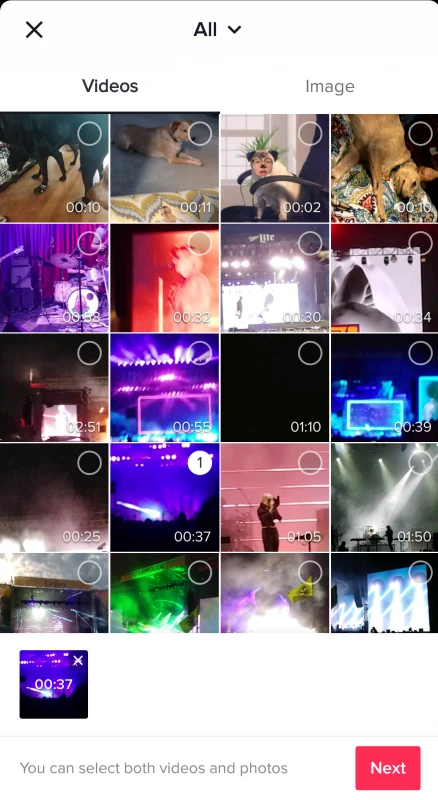
On the recording screen, tap Upload on the right side. Your phone’s gallery will appear.
Step 3 — Select Your Long Video
Choose any video stored on your device, including content that exceeds 1 minute. TikTok supports many common formats (MP4, MOV, etc.).
Step 4 — Trim or Adjust Speed
Use TikTok’s built-in editor to shorten or slightly modify the playback speed. This helps fine-tune your pacing but does not extend the maximum upload limit.

Step 5 — Add Effects, Audio & Captions
Insert filters, stickers, and captions. If you select an audio track shorter than your video, make sure to test how it loops or ends.
Step 6 — Privacy Settings & Upload
Choose whether your post is Public, Friends, or Private. You can enable or disable comments, Duet, and Stitch. Finally, tap Post.
IV. Tips & Notes
- Always update the app: many long-form features require the latest version.
- Optimize file size: extremely large videos may upload slowly or fail.
- Consider splitting into parts: if attention retention is important, a multi-part series may perform better.
- Upload from desktop: TikTok's Web Upload often supports longer videos more reliably than mobile.
- Check your aspect ratio: 9:16 vertical is ideal for reach and clarity.
Check the Source Before Following This Guide
Confirm that the link still opens, the content is public and you have the right to save or reuse it. A publicly viewable page does not automatically grant permission to republish the creator’s work. Use an official save or offline feature when the platform provides one and it meets your needs.
Copy the direct post or video URL rather than a profile, search result or shortened link that has not finished redirecting. Private, deleted, login-only, region-limited or protected content may be unavailable. Do not attempt to bypass access controls.
A Practical Verification Workflow
- Open the source and confirm that it is the intended item.
- Copy the direct URL through the platform’s sharing control.
- Use the relevant DownloadVideo.vn tool only for content you are permitted to process.
- Review the available result instead of assuming a particular format or resolution will always be present.
- Open the downloaded file and check the beginning, middle and end before deleting the source.
File quality depends on what the source platform makes available. A tool cannot reconstruct image detail, frames or audio quality that is absent from the source. Labels such as HD or 4K should be verified against the actual file properties and visible result.
Troubleshooting
The URL is not recognized
Copy it again from Share, remove unnecessary tracking text and open shortened links fully before retrying. Also confirm that the content has not been removed or restricted.
The expected format or quality is missing
Availability changes with the source, platform delivery method and current technical support. Try the direct public URL and select only from results that are actually offered.
The file downloaded but cannot be found
Check browser download history, the Downloads folder and storage permissions. Mobile devices may require an additional Save to Photos action supplied by the operating system.
Rights, Attribution and Privacy
Keep the creator’s attribution when required and obtain permission before reposting, editing for publication or using a video commercially. Do not download private material, expose personal information or present another person’s work as your own. For business and affiliate use, retain evidence of consent and review the platform rules that apply to the account.
When a project involves a client, team or brand account, document who supplied the source, what use was approved and how long that permission applies. This record makes later review easier and prevents a downloaded copy from becoming separated from its original context.
Frequently Asked Questions
Does this method work with every link?
No. Results depend on the link, public availability, access requirements and data supplied by the platform.
Is the original file changed?
No. A downloaded result is a separate copy. Keep the source until you have checked the new file.
Can I repost the result?
Only if you own the content or have the required permission or license. The ability to save a file does not create reuse rights.
You can also browse all DownloadVideo.vn tools to choose a workflow that matches the actual source and intended output.