
 English
 Bahasa Indonesia
 Čeština
 Deutsch
 Eesti
Eesti Español
 Filipino
 Français
 Hrvatski
 Íslenska
 Italiano
 Magyar
 Nederlands
 Norsk
Norsk Polski
 Português
 Română
 Suomi
Suomi Tiếng Việt
 Türkçe
 Български
 Монгол
 Русский
 Српски
 עברית
עברית العربية
 हिन्दी
 ไทย
ไทย ភាសារខ្មែរ
 한국어
한국어 中文
中文 日本語
日本語How to Make Lip Sync Videos on TikTok Easily | Step-by-Step Guide
Author: DownloadVideo.vn Team
🎵 How to Make Lip Sync Videos on TikTok Easily (2025 Guide)
TikTok is one of the most popular short-video platforms today, allowing anyone to create fun, creative, and viral content.
One of the most popular trends is lip-syncing to songs or sound clips — perfect for anyone who loves performing without actually singing!
If you’re new to TikTok, here’s a simple, step-by-step guide to make your first lip sync video quickly and easily.
Step 1: Open the TikTok App
Launch the TikTok app on your phone. If you haven’t installed it yet, download it from the App Store or Google Play, then log in to your account.
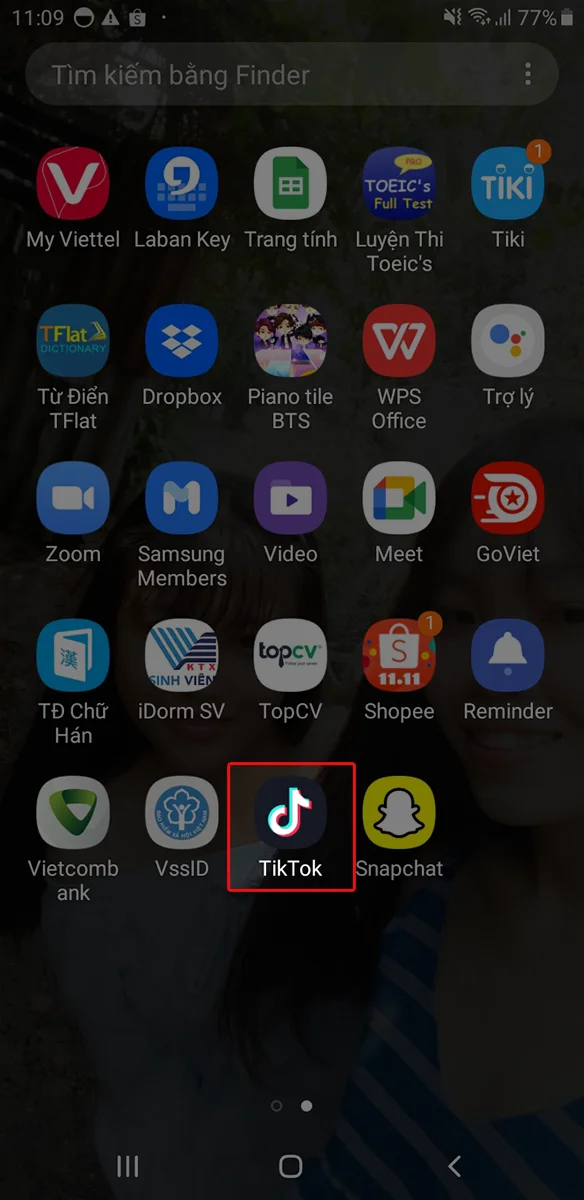
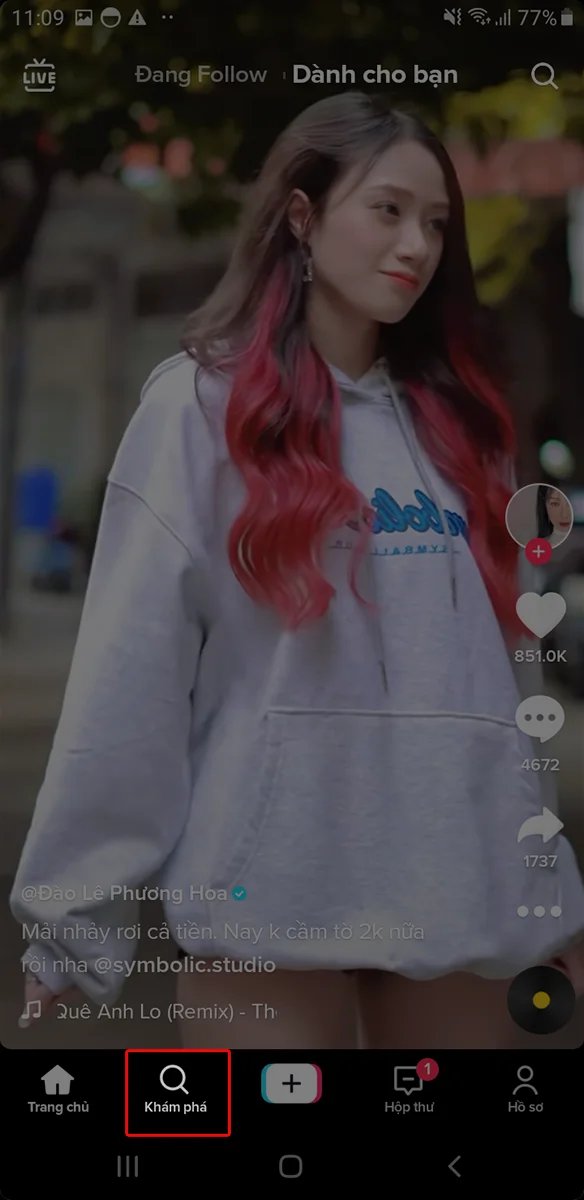
Step 2: Go to “Discover”
Tap on Discover at the bottom of your screen. This is where you can search for trending songs, hashtags, and video ideas.
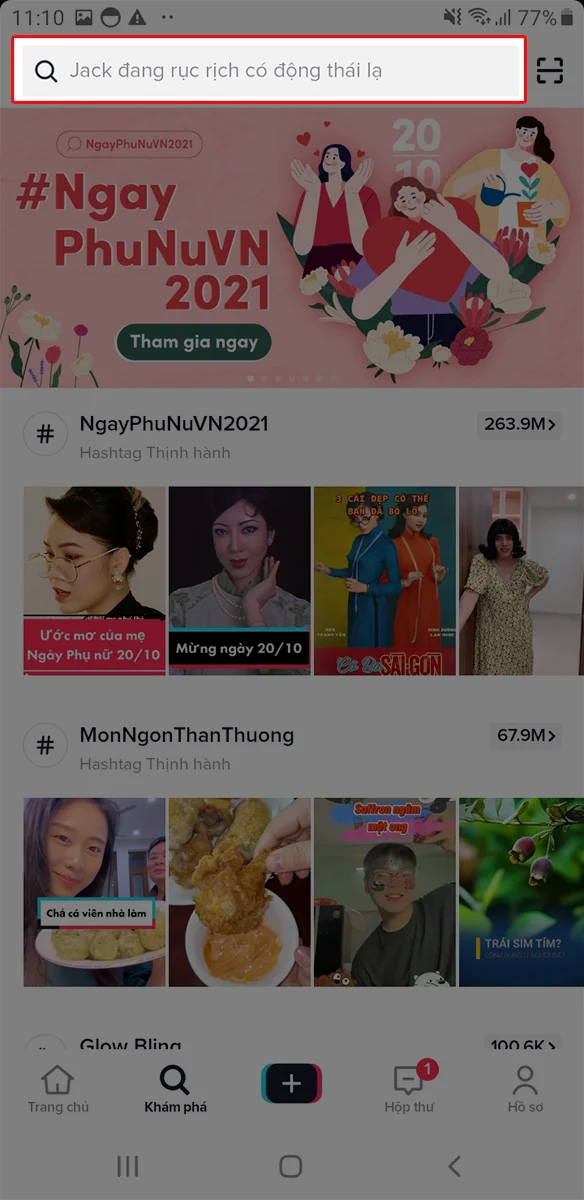
Step 3: Search for the Song You Want
In the search bar, type the name of the song you’d like to lip-sync to. TikTok will show you related videos and sounds.
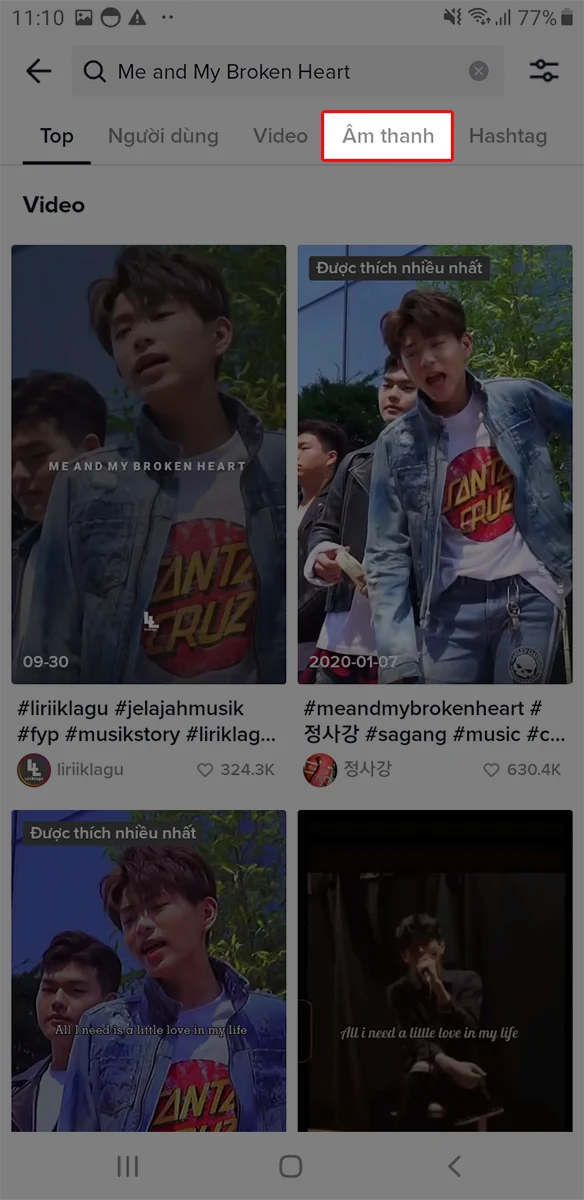
Step 4: Select the “Sounds” Tab
Switch to the Sounds section to browse all available versions or snippets of that song.
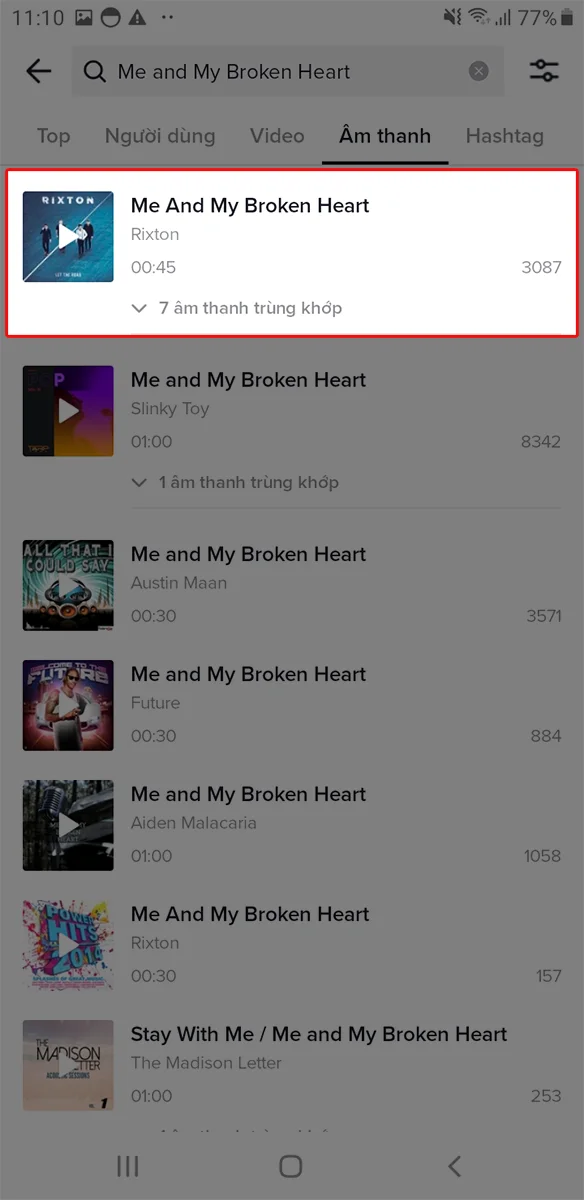
Step 5: Choose the Perfect Sound
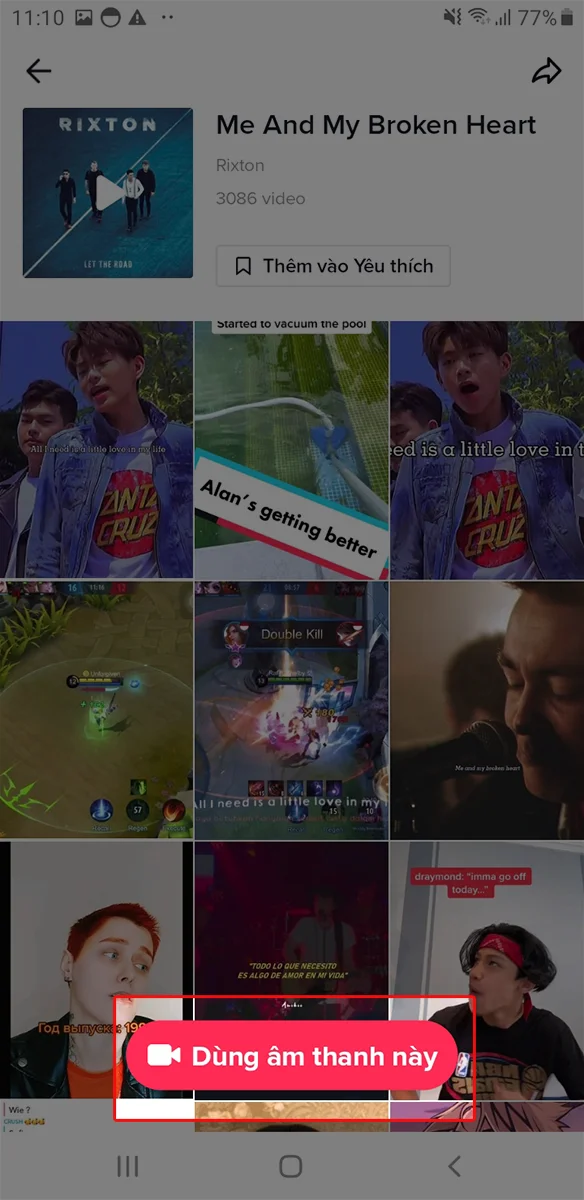
Listen to a few clips and pick the one you like most. Once ready, tap “Use this sound” to start recording with that track.
Step 6: Set the Video Length
Choose how long you want your video to be — 15 seconds, 30 seconds, or up to 1 minute depending on your TikTok version.
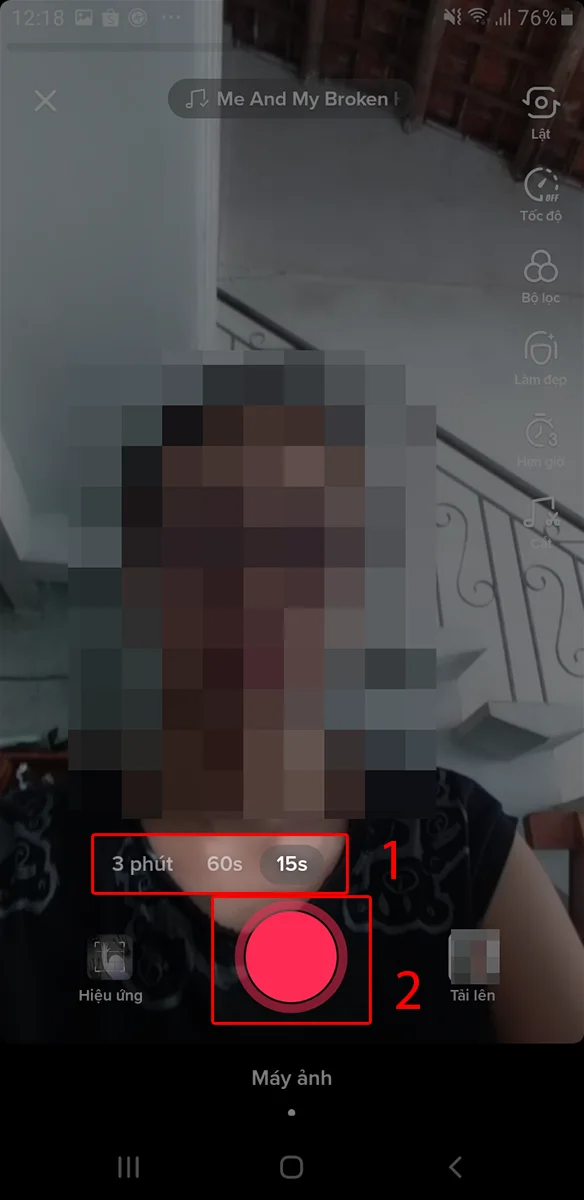
Step 7: Record Your Lip Sync Video
Press the red record button to start filming. Try to match your lip movements with the lyrics or beat for a smooth result.
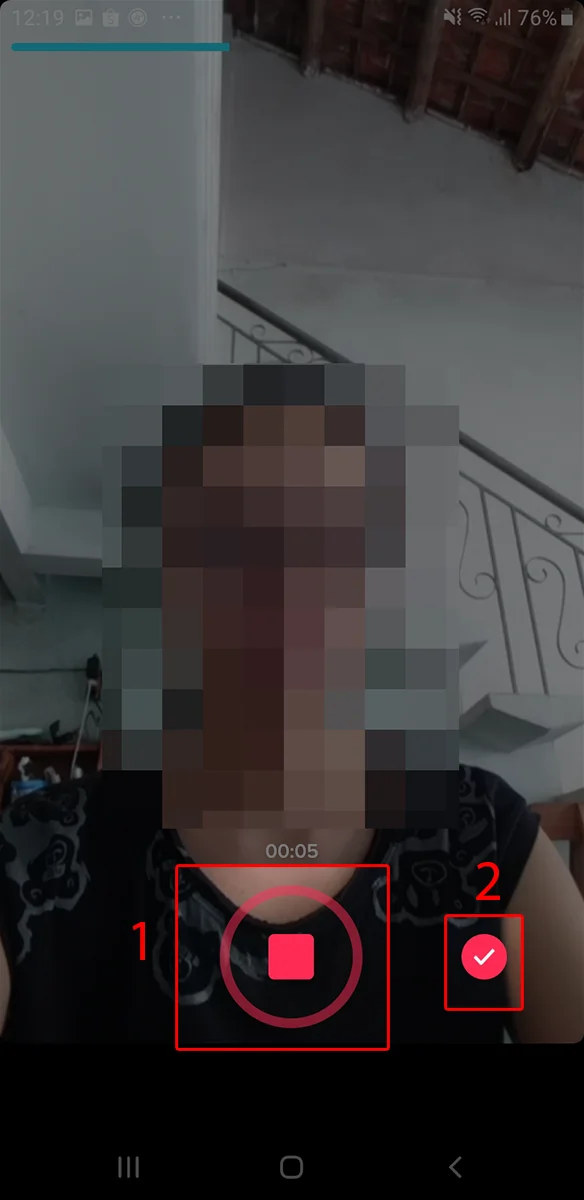
Step 8: Stop Recording
Tap the red button again to stop. Then, press the checkmark (✔) to preview your clip.
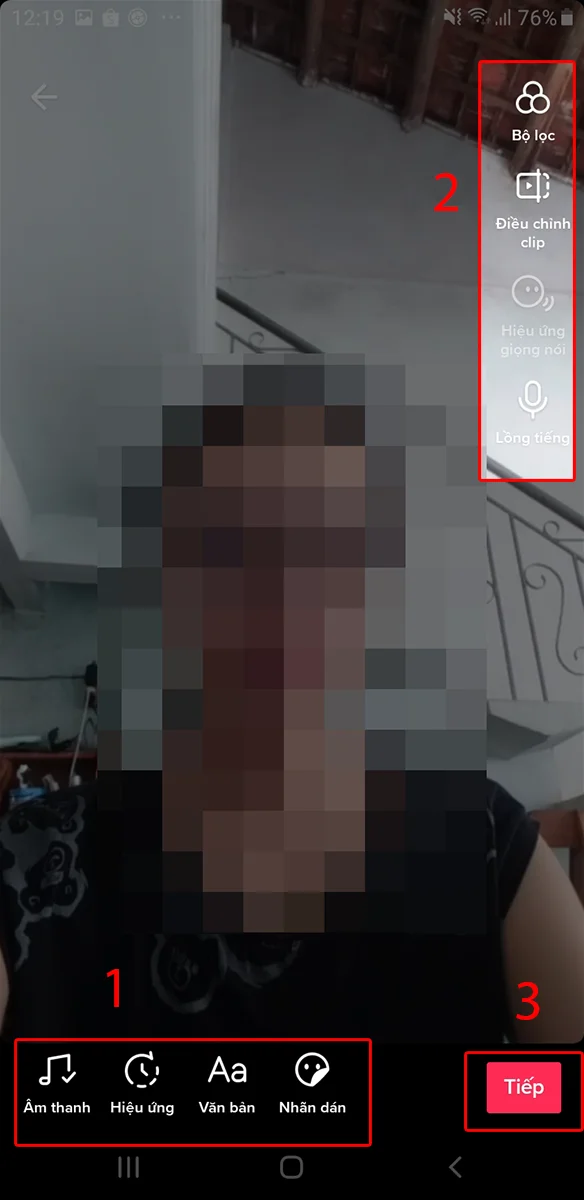
Step 9: Add Filters and Effects
TikTok offers tons of filters, stickers, and transition effects — use them to make your video more engaging and visually appealing.
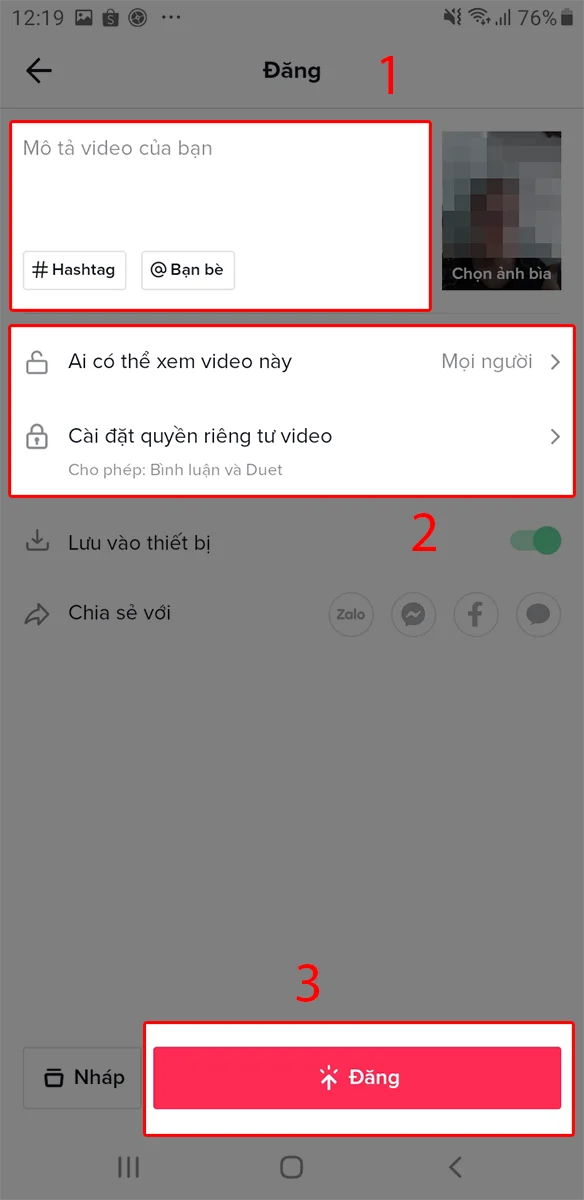
Step 10: Write a Catchy Caption and Post
Add a fun caption, tag your friends, and use popular hashtags like #LipSync, #TikTokTrend, or #ViralSound.
Set your privacy (Public, Friends, or Private), then hit Post!
💡 Pro Tips to Make Your Lip Sync Stand Out
- Pick a trending or funny song for better reach
- Record in good lighting for higher quality
- Use slow motion or transition effects to sync better
- Engage with others using duet or stitch features
✅ Conclusion
Creating a lip sync video on TikTok is easier than it looks.
Just choose your favorite sound, record confidently, add your style, and share it with the world — your next video might just go viral!
Tips & Tricks for TikTok – The Unique Video Social Network | TikTok
Check the Source Before Following This Guide
Confirm that the link still opens, the content is public and you have the right to save or reuse it. A publicly viewable page does not automatically grant permission to republish the creator’s work. Use an official save or offline feature when the platform provides one and it meets your needs.
Copy the direct post or video URL rather than a profile, search result or shortened link that has not finished redirecting. Private, deleted, login-only, region-limited or protected content may be unavailable. Do not attempt to bypass access controls.
A Practical Verification Workflow
- Open the source and confirm that it is the intended item.
- Copy the direct URL through the platform’s sharing control.
- Use the relevant DownloadVideo.vn tool only for content you are permitted to process.
- Review the available result instead of assuming a particular format or resolution will always be present.
- Open the downloaded file and check the beginning, middle and end before deleting the source.
File quality depends on what the source platform makes available. A tool cannot reconstruct image detail, frames or audio quality that is absent from the source. Labels such as HD or 4K should be verified against the actual file properties and visible result.
Troubleshooting
The URL is not recognized
Copy it again from Share, remove unnecessary tracking text and open shortened links fully before retrying. Also confirm that the content has not been removed or restricted.
The expected format or quality is missing
Availability changes with the source, platform delivery method and current technical support. Try the direct public URL and select only from results that are actually offered.
The file downloaded but cannot be found
Check browser download history, the Downloads folder and storage permissions. Mobile devices may require an additional Save to Photos action supplied by the operating system.
Rights, Attribution and Privacy
Keep the creator’s attribution when required and obtain permission before reposting, editing for publication or using a video commercially. Do not download private material, expose personal information or present another person’s work as your own. For business and affiliate use, retain evidence of consent and review the platform rules that apply to the account.
When a project involves a client, team or brand account, document who supplied the source, what use was approved and how long that permission applies. This record makes later review easier and prevents a downloaded copy from becoming separated from its original context.
Frequently Asked Questions
Does this method work with every link?
No. Results depend on the link, public availability, access requirements and data supplied by the platform.
Is the original file changed?
No. A downloaded result is a separate copy. Keep the source until you have checked the new file.
Can I repost the result?
Only if you own the content or have the required permission or license. The ability to save a file does not create reuse rights.
You can also browse all DownloadVideo.vn tools to choose a workflow that matches the actual source and intended output.