
 English
 Bahasa Indonesia
 Čeština
 Deutsch
 Eesti
Eesti Español
 Filipino
 Français
 Hrvatski
 Íslenska
 Italiano
 Magyar
 Nederlands
 Norsk
Norsk Polski
 Português
 Română
 Suomi
Suomi Tiếng Việt
 Türkçe
 Български
 Монгол
 Русский
 Српски
 עברית
עברית العربية
 हिन्दी
 ไทย
ไทย ភាសារខ្មែរ
 한국어
한국어 中文
中文 日本語
日本語How to Download Photos from Facebook to iPhone, Android, and Computer
Author: DownloadVideo.vn Team
Do you want to download photos from Facebook to your computer or phone but don't know how to do it? Don't worry, saving meaningful moments from Facebook is very simple. This guide will show you how to quickly download photos, even if you need to download photos from someone else's Facebook while maintaining high quality.
How to Download Facebook Photos to iPhone
If you use an iPhone, downloading photos from Facebook to your device is very easy, and no additional apps are required. With these simple steps below, you can download photos from someone else's Facebook to your iPhone quickly.
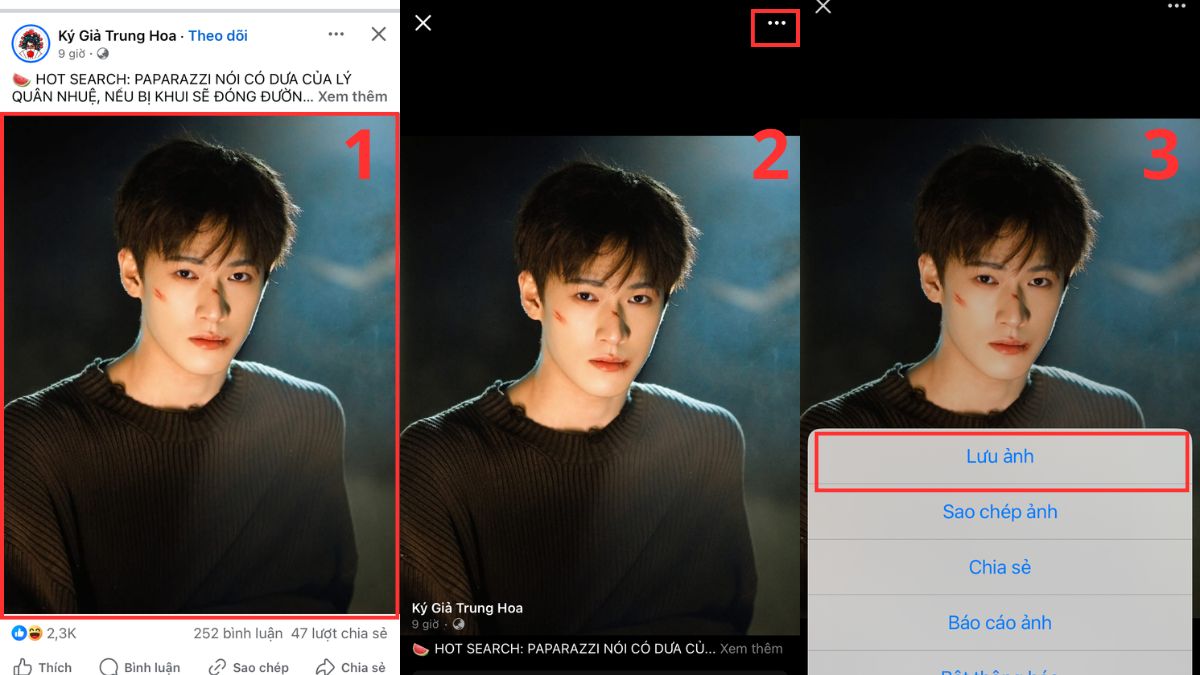
- Step 1: Open the Facebook app on your iPhone.
- Step 2: Find the photo you want to download.
- Step 3: Tap on the photo to view it in full-screen size.
- Step 4: Tap and hold the photo, or select the three-dot icon in the top right, then select "Save Photo".
- Step 5: The photo will be automatically saved to your iPhone's Photos library.
How to Download Facebook Photos to Android Phone
If you use an Android phone, downloading photos from Facebook to your device is also very convenient. Just follow the steps below to save any photo from Facebook to your photo library.
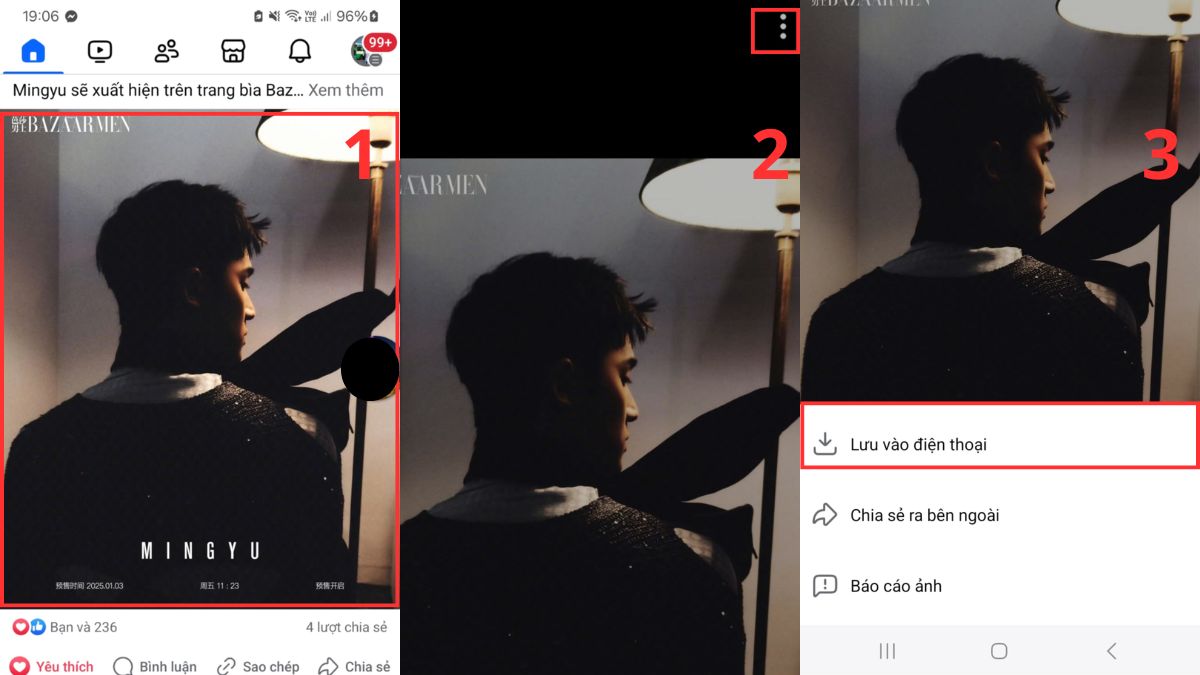
- Step 1: Open the Facebook app on your Android device.
- Step 2: Find and open the photo you want to download.
- Step 3: Tap the photo, select the three-dot icon in the top right, and click "Save to Phone".
- Step 4: The photo will be saved in your device's Downloads or Gallery folder.
How to Download Facebook Photos to Computer
When using a computer, you can download photos from Facebook in the best quality, and even quickly download multiple photos. Below is the method to download Facebook photos to your computer, from sharp single images to entire photo albums.
Download Facebook Photos in Full HD Without Loss of Quality
If you want to save photos without reducing their quality, follow the steps below to ensure each photo retains its high sharpness.
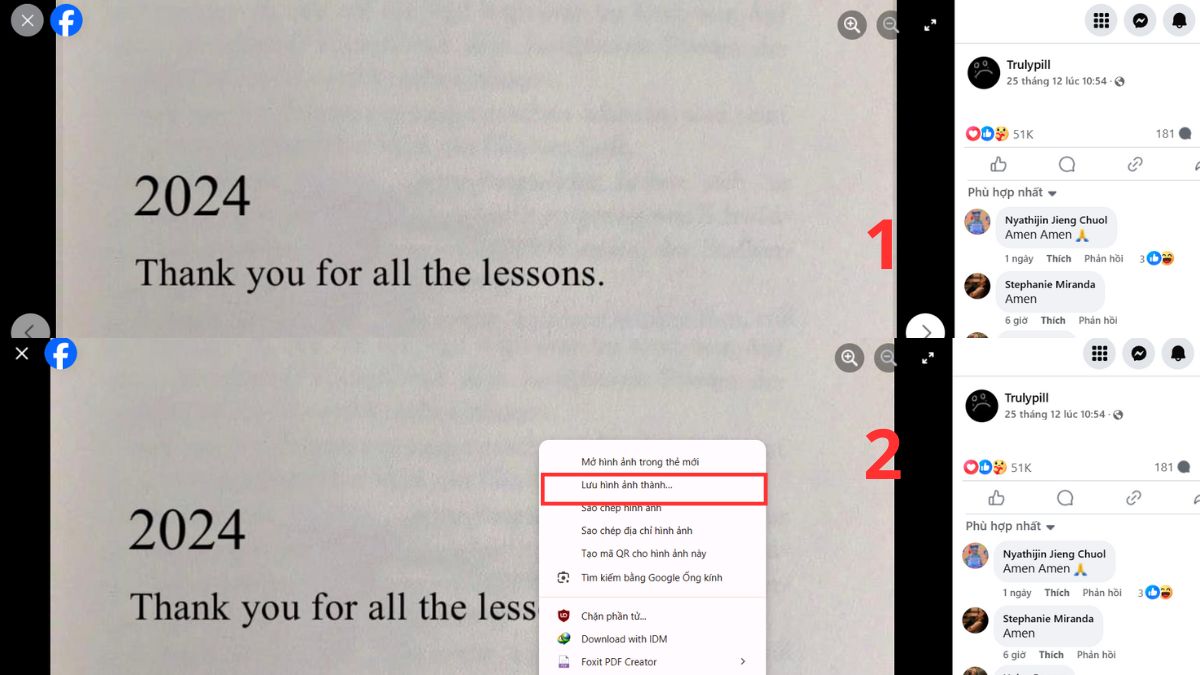
- Step 1: Open Facebook in a web browser on your computer.
- Step 2: Find and open the photo you want to download in full-screen mode.
- Step 3: Right-click on the photo, a menu will appear. Select "Save image as…".
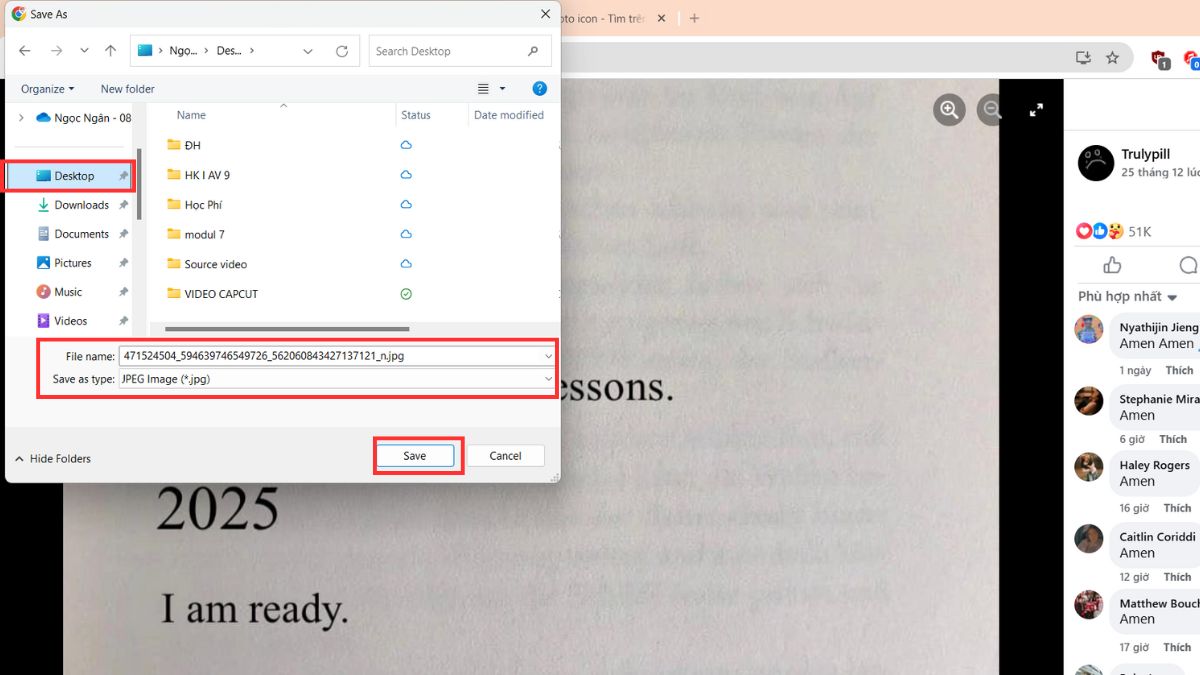
- Step 4: Name the file and choose the save location on your computer, then click Save.
Download Facebook Video Thumbnail Images
If you need to download photos from Facebook videos, you can use various tools to assist. This method helps you save time when downloading multiple photos or photos from Facebook videos of both your own and others.
On Computer
Step 1: Getting a video link from Facebook on your computer is very simple. You can do it in 4 ways:
Method 1: Go to Facebook’s homepage in a web browser. Click on the video you want the link to. In the address bar at the top, highlight the entire URL, then press Ctrl + C to copy. Then, you can share the link through Messenger or other apps by pressing Ctrl + V to paste.

Method 2: Click on the video on Facebook, right-click, and select "Show video URL". Then, highlight the entire link and press Ctrl + C to copy. Paste the link anywhere you want.
Method 3: Get the video link from a friend’s shared video. If you see a notification on Facebook saying someone shared a video, you will see the word "video" in blue. Right-click on the video and select "Copy link address". Then, you can share it by pressing Ctrl + V to paste the link.
Method 4: Get the video link using the embed function. Click the down arrow on the right side of the video, select "Embed", and click on "Advanced settings". Copy the URL in the box and paste it wherever necessary.
Step 2: Visit the website downloadvideo.vn, paste the link into the search box.
Step 3: Click Download or search.
Step 4: Choose to download the video or photo in various HD formats.
On Mobile
To get a Facebook video link on your phone, you can follow these instructions:
Step 1:
Method 1: Tap the three-dot button above the video, then select Copy link. When you want to share it with someone, tap and hold the text field for 3 seconds. The options menu will appear, and you select paste to paste the copied link.
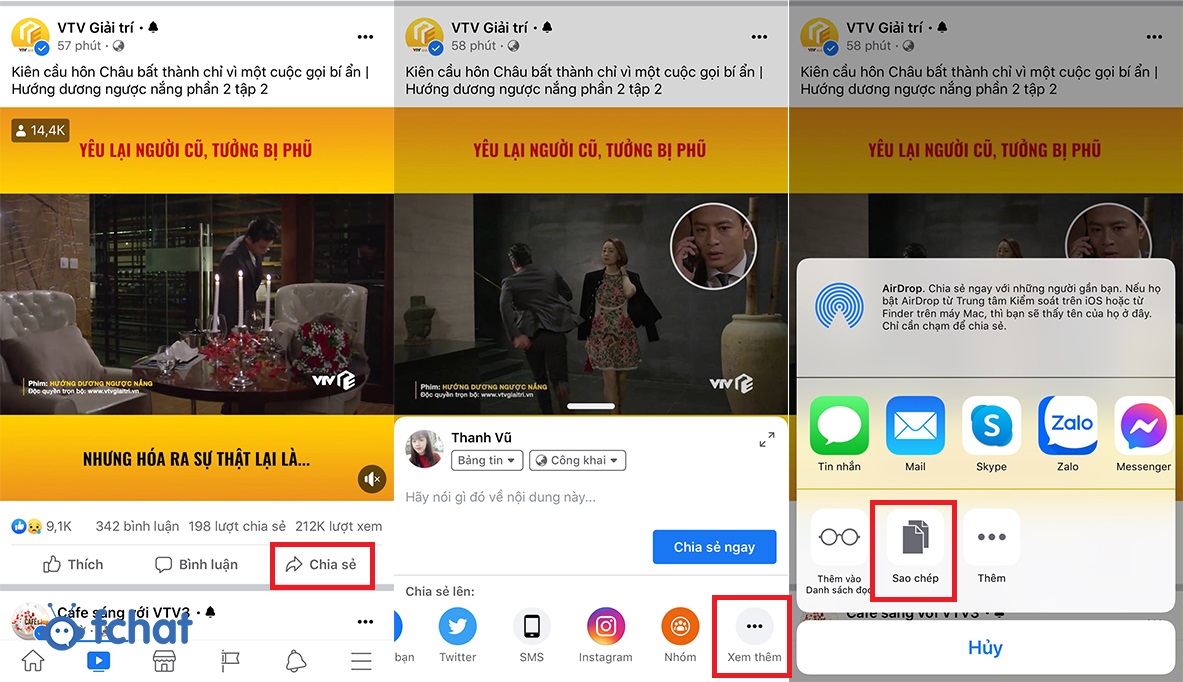
Method 2: Click on the video you want the link for, then tap the Share button in the bottom right corner of the video. Select See More, then choose Copy and share with your friends by pasting the link.
Step 2: Visit the website downloadvideo.vn, paste the link into the search box.
Step 3: Click Download or search.
Step 4: Choose to download the video or photo in various HD formats.
Check the Source Before Following This Guide
Confirm that the link still opens, the content is public and you have the right to save or reuse it. A publicly viewable page does not automatically grant permission to republish the creator’s work. Use an official save or offline feature when the platform provides one and it meets your needs.
Copy the direct post or video URL rather than a profile, search result or shortened link that has not finished redirecting. Private, deleted, login-only, region-limited or protected content may be unavailable. Do not attempt to bypass access controls.
A Practical Verification Workflow
- Open the source and confirm that it is the intended item.
- Copy the direct URL through the platform’s sharing control.
- Use the relevant DownloadVideo.vn tool only for content you are permitted to process.
- Review the available result instead of assuming a particular format or resolution will always be present.
- Open the downloaded file and check the beginning, middle and end before deleting the source.
File quality depends on what the source platform makes available. A tool cannot reconstruct image detail, frames or audio quality that is absent from the source. Labels such as HD or 4K should be verified against the actual file properties and visible result.
Troubleshooting
The URL is not recognized
Copy it again from Share, remove unnecessary tracking text and open shortened links fully before retrying. Also confirm that the content has not been removed or restricted.
The expected format or quality is missing
Availability changes with the source, platform delivery method and current technical support. Try the direct public URL and select only from results that are actually offered.
The file downloaded but cannot be found
Check browser download history, the Downloads folder and storage permissions. Mobile devices may require an additional Save to Photos action supplied by the operating system.
Rights, Attribution and Privacy
Keep the creator’s attribution when required and obtain permission before reposting, editing for publication or using a video commercially. Do not download private material, expose personal information or present another person’s work as your own. For business and affiliate use, retain evidence of consent and review the platform rules that apply to the account.
When a project involves a client, team or brand account, document who supplied the source, what use was approved and how long that permission applies. This record makes later review easier and prevents a downloaded copy from becoming separated from its original context.
Frequently Asked Questions
Does this method work with every link?
No. Results depend on the link, public availability, access requirements and data supplied by the platform.
Is the original file changed?
No. A downloaded result is a separate copy. Keep the source until you have checked the new file.
Can I repost the result?
Only if you own the content or have the required permission or license. The ability to save a file does not create reuse rights.
You can also browse all DownloadVideo.vn tools to choose a workflow that matches the actual source and intended output.